Rotate Root With step-ca (small step)
Steps involved in rotating a root ca when using step-ca

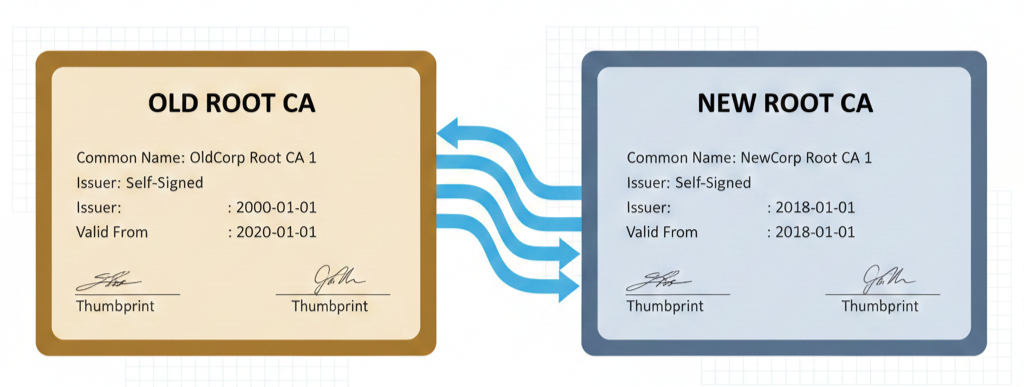
Using step ca for internal pki is easy and nice especially for home lab environments. When initially setting up step-ca, a root certificate and an intermediate certificate is create each with 10 years. However my question was what after those 10 years? How can I rotate the root certificate and ensure a seamless transition between all my devices and already issued certificates.
Searching The Docs and Github
In order to answer my question, I started searching the step-ca github issues and discussions and also go over every item in the step-ca docs. In github discussion I came across various discussion, particularly this #1154 and #22. This provides a high level overview but not really on how to achieve it.
So lets achieve that...
- Generate a new root and new intermediate signed by the new root
- Add the new root, to the root key
- On the client machines run
step ca roots ~/.step/certs/root_ca.crt. This replaces the existingroot_ca.crtwith a bundle of both the old root and new root - Reconfigure the ca, and switch over to the new_intermediates and change the position of the new root with the old root in the
rootkey - We should now be able to renew existing certs with the new intermediates
- After being sure all client and all certs have been renewed with the new certs, we can remove the old root cert from the
rootkey.
Generate the new root and intermediate certs (server)
Lets start by generating the new root certificate and new intermediate certificates that is signed by the new root
# Create a new 10 year root cert
step certificate create "Home Media v2" v2_root_ca.crt v2_root_ca_key --profile root-ca -kty EC --curve P-256 --not-after 87600h

# Create a new 10 year intermediary cert, signed by the new root
step certificate create "Home Media Intermediate v2" v2_intermediate_ca.crt v2_intermediate_ca_key --profile intermediate-ca --ca v2_root_ca.crt --ca-key v2_root_ca_key --not-after 87600h
Once we have generated the certs, lets move the *.crt files to the certs folder and the *_key files to secrets folder.
templates
When creating a new root cert, the issuer will only contain subject name and not contain the organization. This might bug some people, including me, so instead we can use templates. I have included some defaults at the end of the pages.
Then instead of running with --profile <root-ca or intermediate-ca we run with --template <file.tmpl
Add the new root to the ca root (server)
After generating and moving the certs to appropriate folder, lets update ca.json on the ca server to include the new root server in the trusted pool and restart step-ca.
{
  "root": ["/home/step/certs/root_ca.crt","/home/step/certs/v2_root_ca.crt"],
  "federatedRoots": null,
  "crt": "/home/step/certs/intermediate_ca.crt",
  "key": "/home/step/secrets/intermediate_ca_key"
}
defaults/ca.json
Download the new root bundles (clients)
In the clients we have to update the root_ca.crt so that the step client knows to trust both the old and new roots
root_ca.crt before running this, so it easier to uninstall the certificate from the trust store if installed# Update the root_ca.crt with the bundle of both of the old and new roots
step ca roots ~/.step/certs/root_ca.crtMigrate to the new intermediaries (server)
After making sure that all clients have the new root bundles, we can go ahead and replace the crt and key to the new intermediaries and switch the placement of root and restart step-ca
{
  "root": ["/home/step/certs/v2_root_ca.crt","/home/step/certs/root_ca.crt"],
  "federatedRoots": null,
  "crt": "/home/step/certs/v2_intermediate_ca.crt",
  "key": "/home/step/secrets/v2_intermediate_ca_key"
}
defaults/ca.json
Renewal of certs
All previously issued certificates will now be renewed with the new intermediaries
step ca renew app.crt app.key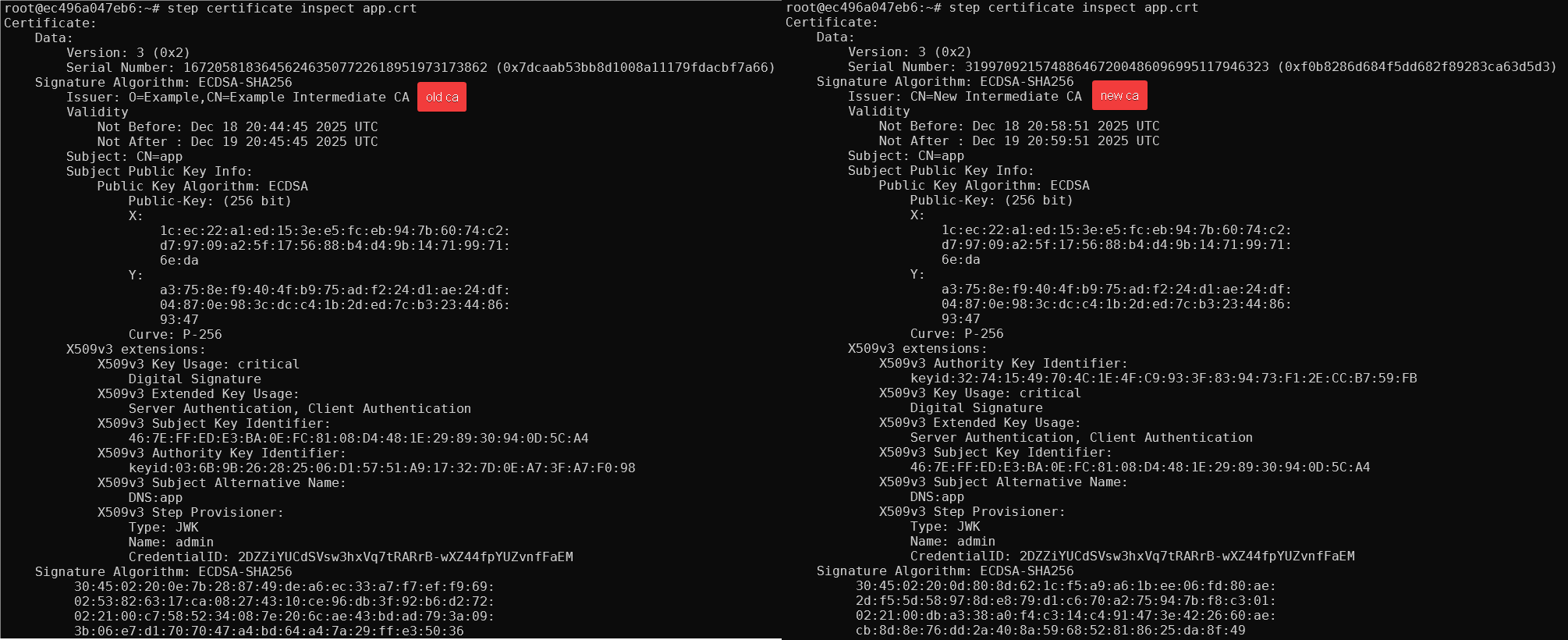
left image shows a certificate issued with an old ca, image on the right show a certificate that renewed with the new ca
Remove old ca and update defaults.json (server)
After being sure that all the client have downloaded the new root bundle, containing old and new root ca, and making sure that all existing certificates have been renewed with the new intermediary we can go ahead and remove the old root ca from the root key in ca.json
One thing, some might have noticed is that after switching to the new intermediaries the step-ca server starting throwing a bunch of errors regarding tls errors.
2025/12/19 06:33:46 /usr/local/go/src/net/http/server.go:3677: http: TLS handshake error from [::1]:48916: remote error: tls: bad certificateThis is because the defaults.json file has pinned a pinned fingerprint to the old root ca and it is pointing at the old root file. Lets update that and after restarting this should clear the errors.
{
        "ca-url": "https://localhost:9000",
        "ca-config": "/home/step/config/ca.json",
        "fingerprint": "3aefecc36daad148bddfcb371258c38158956fedfcf05a93804ce1eae88c0216",
        "root": "/home/step/certs/v2_root_ca.crt"
}
If you do not know the fingerprint, run the following
step certificate fingerprint v2_root_ca.crtCleanup (clients)
On the clients, we can remove old the old root ca and run a new bootstrap to install the new root ca to the device trust
# To remove the old root ca from the trust store (if backed up and installed on device trust store)
step certificate uninstall root_ca.crt.bak

# To bootstrap the client again, this time to remove the bundled root in root_ca.crt and also install it in the device trust store
step ca bootstrap --ca-url http://127.0.0.1:9000 --fingerpring myfingerprint --install
Templates
{
  "subject": {
    "country": "US",
    "organization": "Coyote Corporation",
    "commonName": "{{ .Subject.CommonName }}"
  },
  "issuer": {{ toJson .Subject }},
  "keyUsage": ["certSign","crlSign"],
  "basicConstraints": {
    "isCA": true,
    "maxPathLen": 1
  }
}
root.tmpl
{
    "subject": {
      "organization": "Coyote Corporation",
      "commonName": "{{ .Subject.CommonName }}"
    },
    "subject": {{ toJson .Subject }},
    "keyUsage": ["certSign", "crlSign"],
    "basicConstraints": {
        "isCA": true,
        "maxPathLen": 0
    },
    "nameConstraints": {
        "critical": true,
        "permittedDNSDomains": ["example.com"]
    }
}
intermediate.tmpl
Template docs can be found here.